I recently explored the latest Xiaomi interface update. This new version brings many surprises. I am talking about HyperOS 3.0. This interface hides many features. Some radically change daily smartphone use. I will share nine essential tips with you. You might know some of them. However, others will surely amaze you. Get your Xiaomi ready, we will transform your mobile experience together.
1. Activate the Depth Effect on the Lock Screen
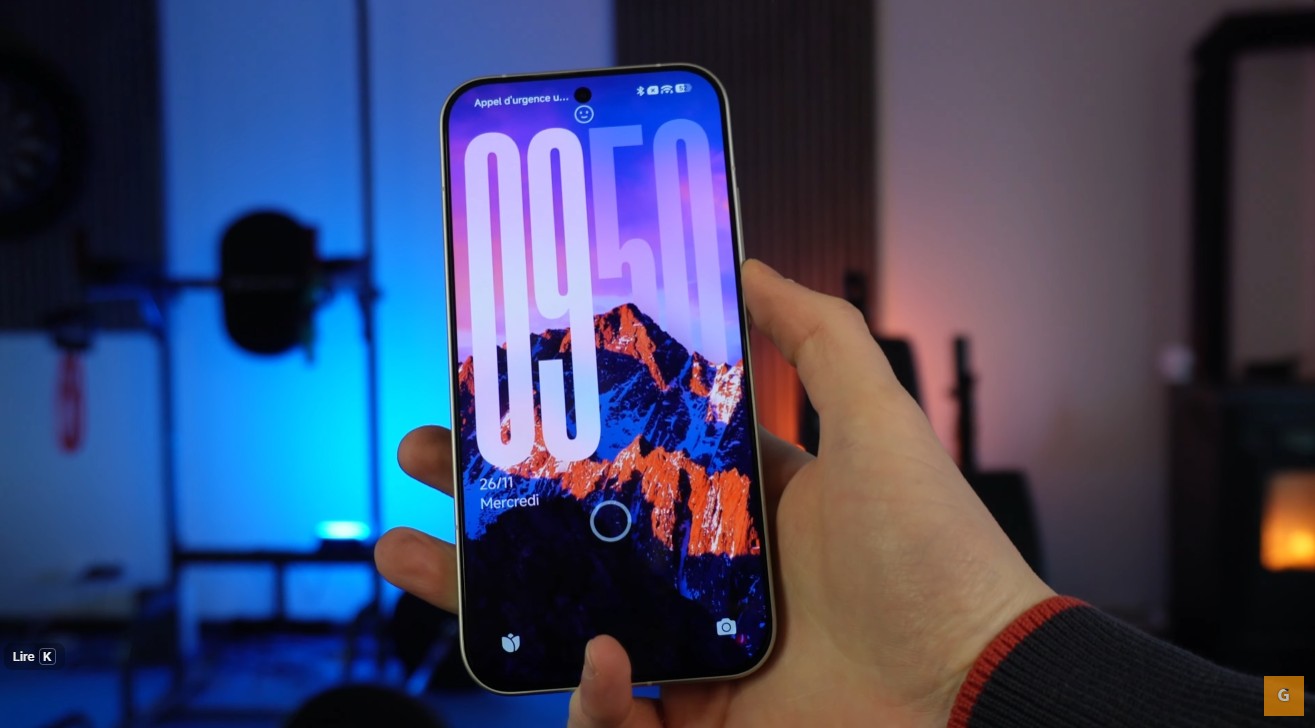
I love customizing my phone. The first trick concerns the “Movie Look”. This gives an incredible depth impression. The time subtly passes behind your wallpaper subject. It is a very elegant visual effect.
To get this result, choose a suitable photo. The subject must stand out clearly from the background. Here is how to proceed on your Xiaomi:
- Open Settings.
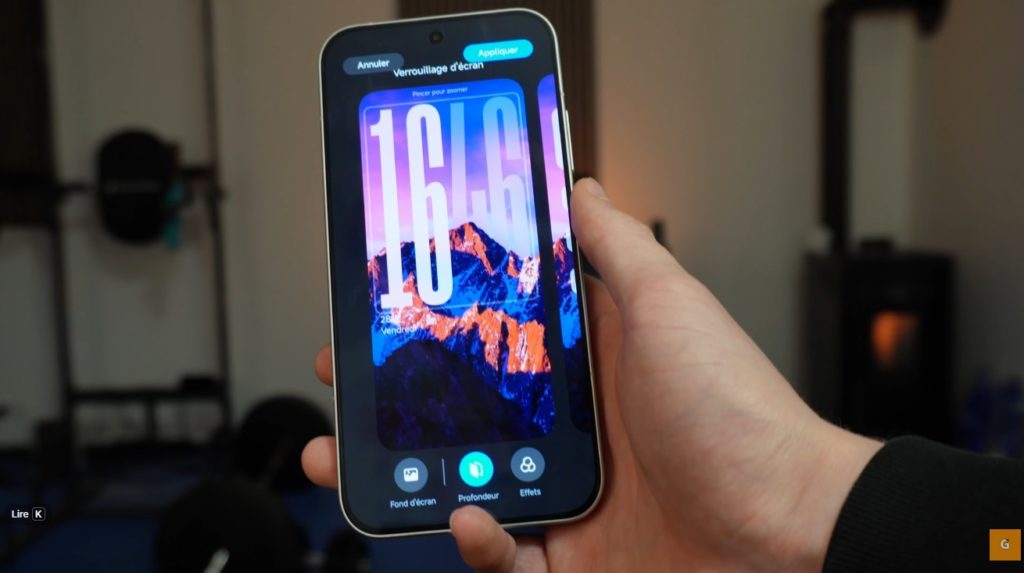
- Go to the Wallpaper & Personalization section.
- Select Customize Lock Screen.
You will see an option named “Depth”. Click it to activate. The clock will then place itself behind the main image element. Watch out, this doesn’t work with all photos. The system must detect a distinct foreground. If the image is too complex, the option stays grayed out. Try several times to find the perfect shot.
2. Master the Dynamic Hyper Island
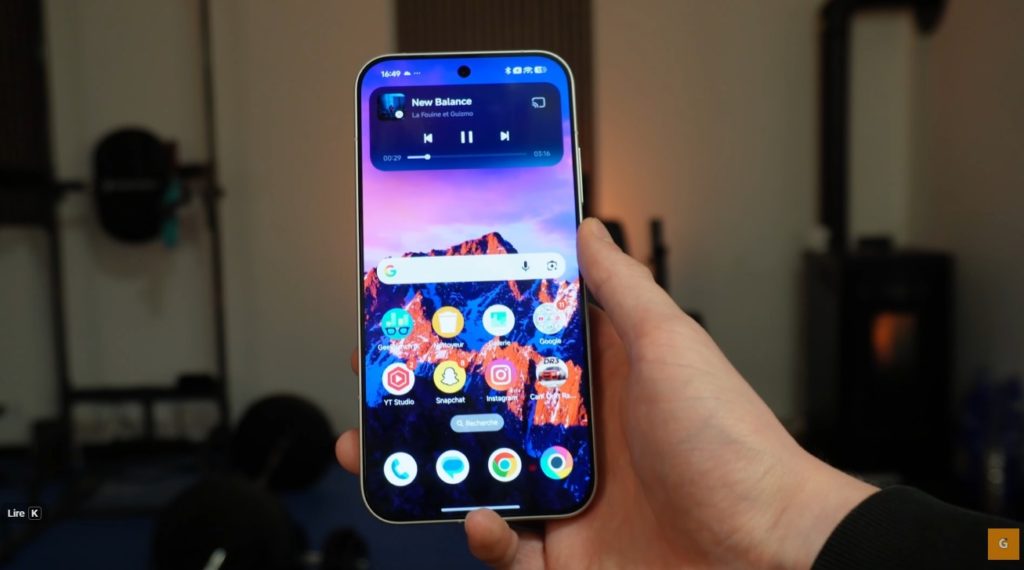
The second feature changes interaction with your apps. It looks like the Apple or Honor “Dynamic Island”. On HyperOS 3.0, the area around the camera becomes interactive. This is very practical for multitasking.
Launch your music app, for example. A small capsule then appears around the front photo sensor. Click on it to interact. You can change tracks or pause easily.
This also works with the timer. Start a countdown and minimize the app. The remaining time displays discreetly at the top of the screen. A simple long press opens more options. To close this zone, simply slide your finger over it. This integration makes the interface much more lively and reactive.
3. Create XXL Folders on the Home Screen
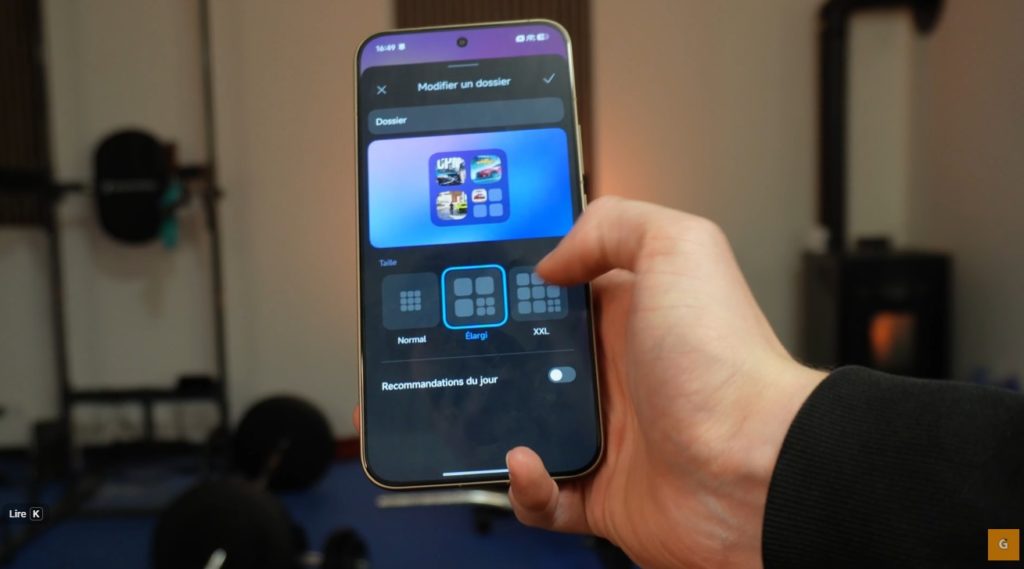
I sometimes find small folders impractical. You must click twice to open an app. Fortunately, Xiaomi offers a great solution. You can enlarge your folders.
This allows direct access to apps. No need to open the folder beforehand. Here is the procedure:
- Create a classic folder by grouping icons.
- Long press on this folder.
- Select Edit Folder.
You then have a choice between several sizes. The “Large” or “XXL” option transforms your screen appearance. In XXL mode, you see more icons directly. A simple click on an icon launches the app. It is a considerable time saver. Plus, it gives a modern look to your home interface.
4. Declutter the Interface by Removing Text
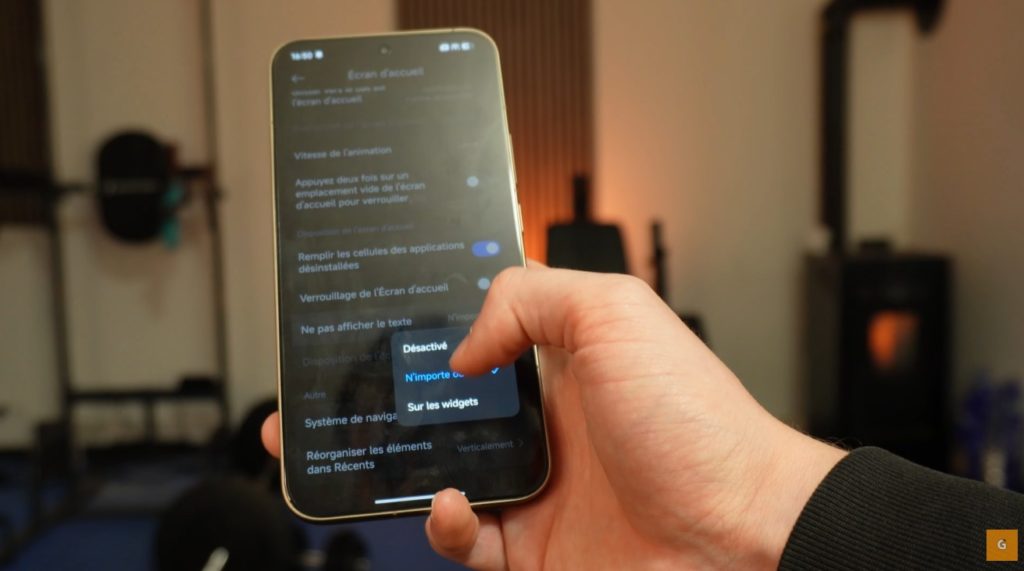
Minimalism is good. Sometimes, app names overload the screen. I often prefer seeing only icons. HyperOS 3.0 allows hiding text under apps completely.
This trick makes your home screen very clean. To activate this “no text” mode, pinch the screen with two fingers. Then access the launcher settings (the little gear wheel). Look for the “Don’t show text” option.
Activate this feature. Upon returning home, the names have disappeared. You can apply this everywhere or only on widgets. It is your choice. Personally, I find this highlights wallpapers. Your Xiaomi will thus have a unique and very sleek look.
5. Cut Out Photos Instantly with the Gallery
Artificial intelligence greatly facilitates photo editing. You no longer need complex software. The native Xiaomi gallery integrates a powerful cutout tool.
Open a photo with a clear subject. This can be a person, an animal, or an object. Long press on this subject. A small glowing animation appears. The system just cut out the element.
Then, several choices await you:
- Copy the element.
- Send it directly to a contact.
- Save it as a new image.
- Change the background.
I often use this function to create quick stickers. It is intuitive and very fast. Edge detection is generally very precise.
6. Force the Maximum Refresh Rate
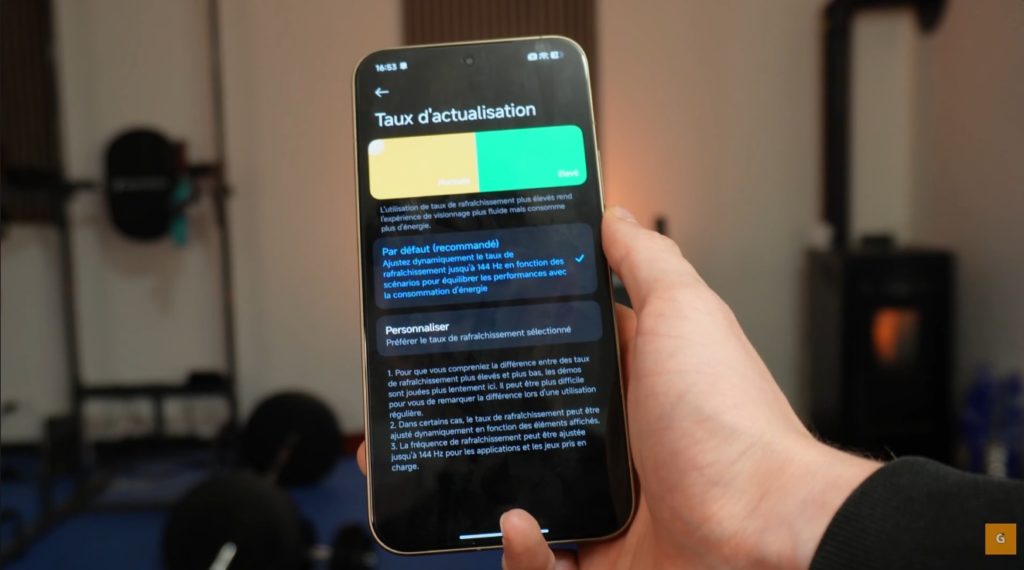
Fluidity is crucial for a good user experience. By default, the system manages this dynamically. It adapts the frequency to save battery. However, I prefer constant fluidity.
You can force your screen to stay at maximum capacity. On high-end models, this often climbs to 120 Hz or 144 Hz.
Go to Settings, then to Display. Look for the Refresh Rate option. Leave the “Default” mode. Select “Custom”. Then choose the highest frequency for all apps. Your navigation will become ultra-smooth. Be careful though, this will consume a bit more battery. But visual comfort is really worth it.
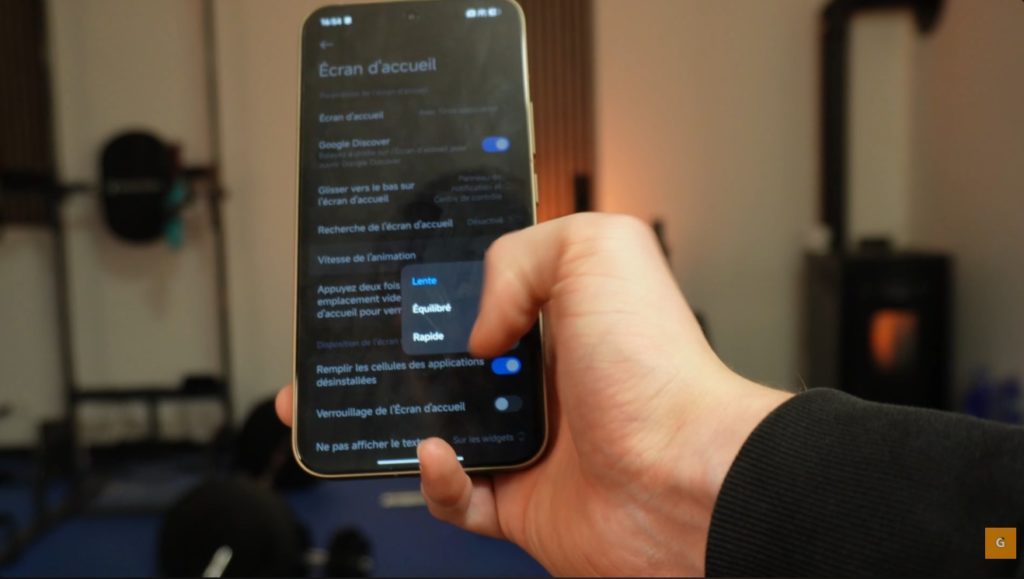
7. Speed Up System Animations
Does your phone seem slow? It might just be a visual impression. Transition animations take time. Xiaomi often sets these animations to medium speed.
We will change this to make the phone snappier. Go back to home screen settings. You will find a section dedicated to Animation Speed.
Three options generally exist: “Slow”, “Balanced”, and “Fast”. Select Fast. The difference is subtle but noticeable. Windows open and close instantly. One really feels like holding a more powerful device. It is a simple trick to energize HyperOS 3.0.
8. Extend Your Images Using AI
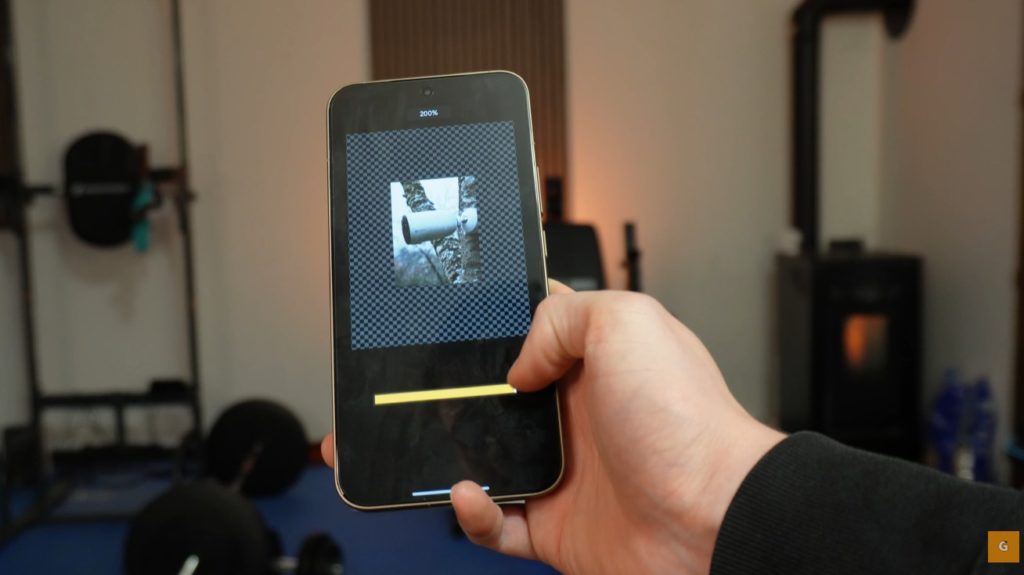
I often frame a photo poorly. The background is sometimes cut off too much. The HyperOS 3.0 generative AI solves this problem. It can imagine and create the rest of your image.
Open your photo in the gallery. Click the Edit button then AI Creation. Select the Expansion (or “Extend”) tool.
The tool analyzes your image. It will then generate matter around the original photo. You can choose a specific ratio. For example, transform a square photo into 16:9 format. Click “Start” and let the magic happen. The result is often stunning. If the first proposal does not please you, start again. The AI will propose a new variation. It is ideal for adapting your photos to social networks.
9. Correct and Rewrite Texts Intelligently
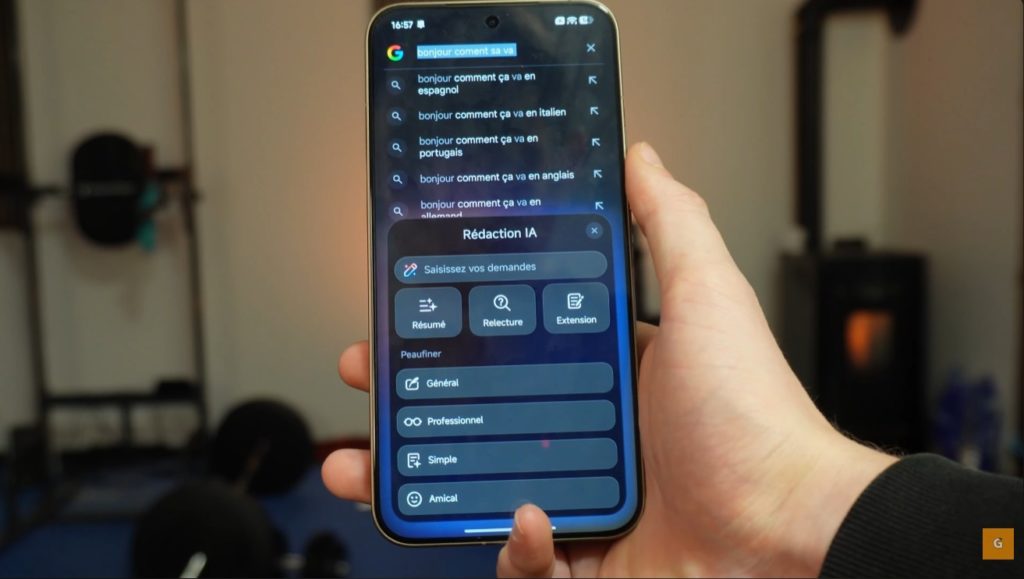
We all write messages quickly. Typos happen fast. Xiaomi integrates a very capable writing assistant. It does not just correct spelling. It can also rephrase your sentences.
This function is sometimes hidden. It is not always directly in the keyboard. Here is how to use it:
- Write your text (even with mistakes).
- Select all text.
- Look for the small AI icon or the magic pen in the context menu.
Click on Proofread or Correction. The tool analyzes your prose. It then proposes a corrected and improved version. You can also ask for a more professional or friendly tone. Then copy the suggestion and replace your text. It is a formidable productivity tool daily.