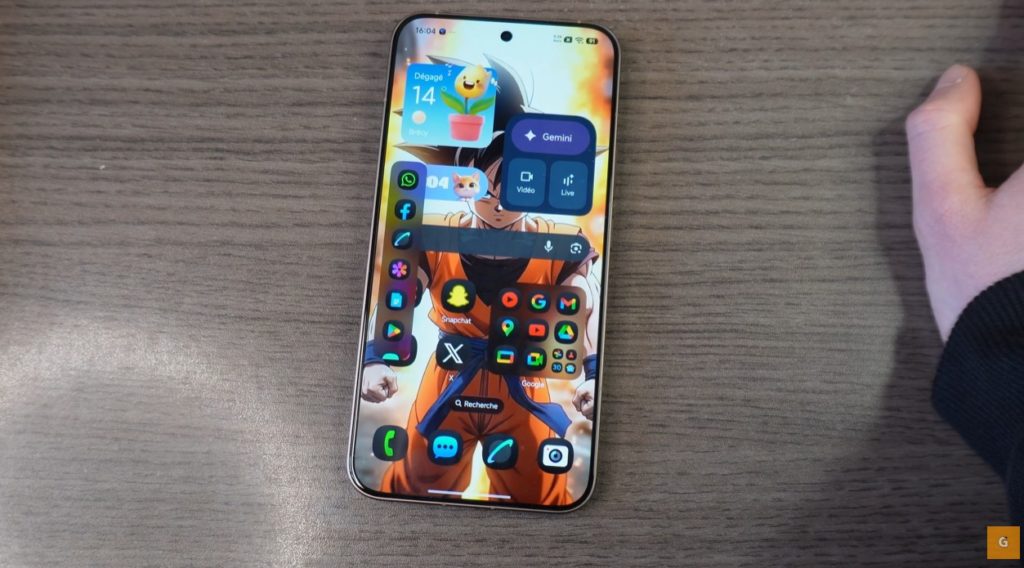
You might have recently bought the superb Xiaomi 15T Pro. Or perhaps you already own a powerful Xiaomi or Poco device. Now, you want to adapt the interface to your personal tastes. This is completely normal. Today, I will give you nine precise tips. They will allow you to customize your smartphone to the max. Furthermore, the HyperOS 3.0 update is currently rolling out to many devices. It is the perfect time to explore these settings in depth.
We will see together how to change your icons. We will also talk about the lock screen and animations. Get ready to rediscover your phone.
Change the Look of Your Icons Radically
Default icons often lack originality. Fortunately, you can modify them very easily. First, go to settings, then to the customization section. You will find an “icons” menu there. However, the basic options remain limited.
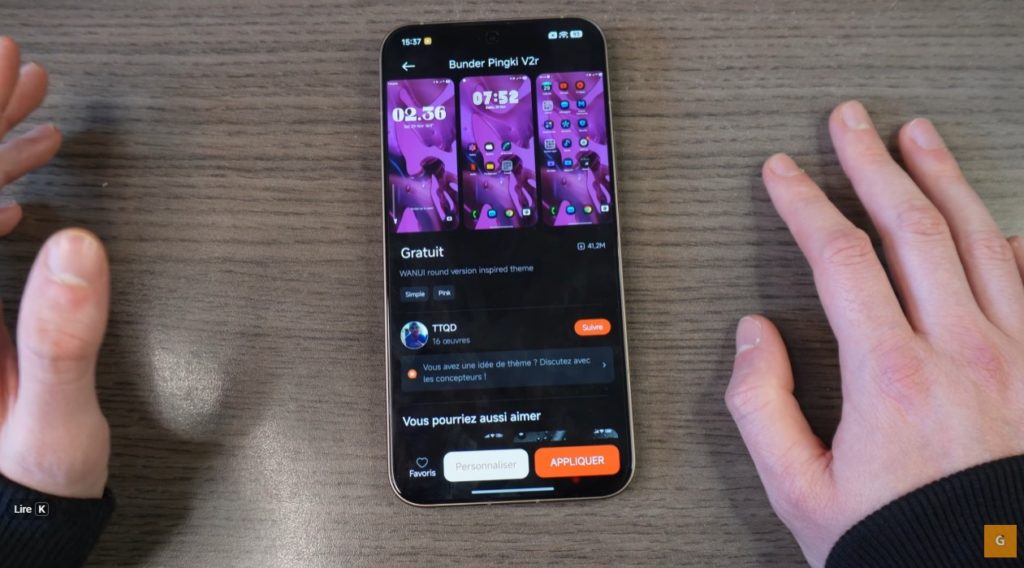
To go further, open the “Themes” application. This is where the magic happens. You can search for specific icon packs. I recommend the “Black Color” pack. Simply type “bunder” in the search bar. Select the corresponding theme.
Next, do not click “Apply” right away. Choose “Customize” instead. Check only the “Icons” box. Confirm your choice. Return to your home screen. You will notice the immediate change. Your icons now sport a dark and elegant design.
This method works for all elements. You can take the lock screen from one theme and icons from another. Mix styles to get a unique interface on your Xiaomi.
Master the Always On Display
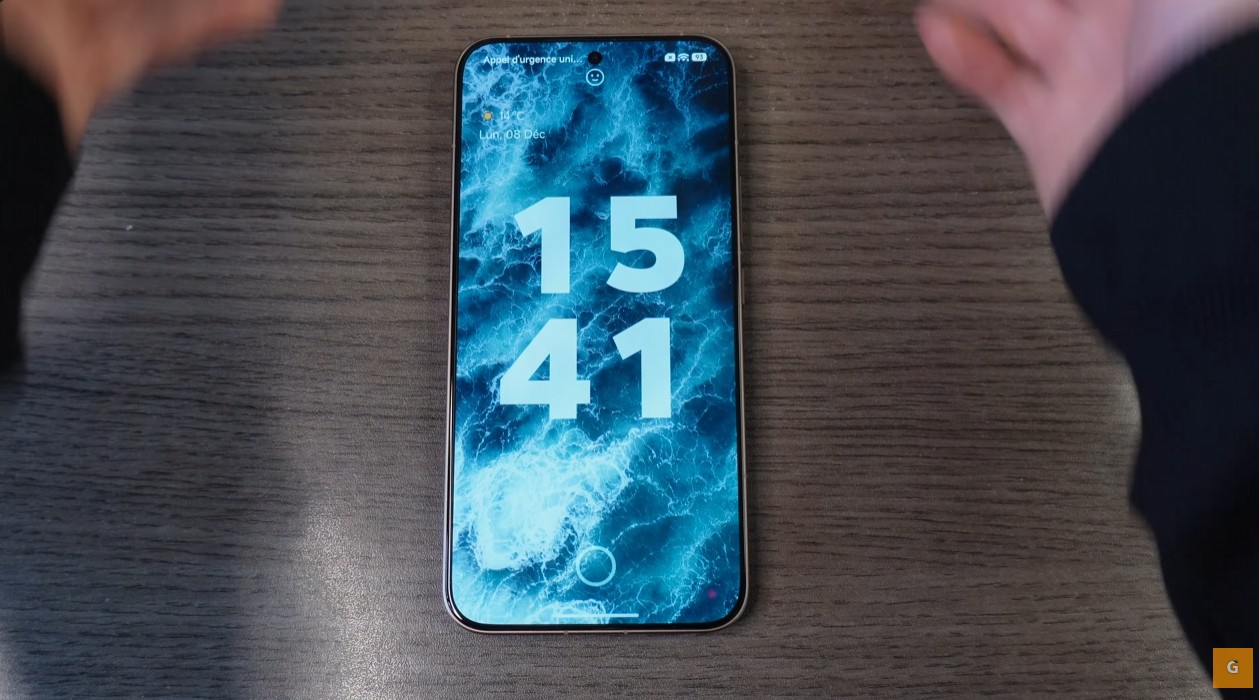
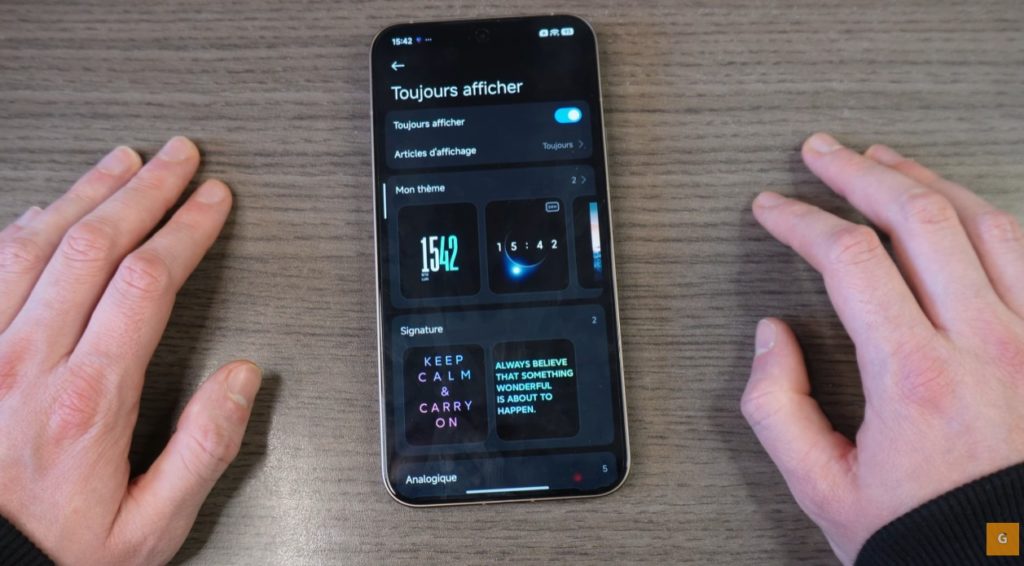
The “Always On Display” option is very practical. It shows information even when the screen is off. Go back to your device settings. Go to the “Always On Display” section.
You have several operating choices and You can activate it for 10 seconds after a tap. You can also schedule it. For example, active it only between 7 AM and 11 PM. This saves your battery during the night.
Then, explore the available themes. You will find analog clocks or signatures. You can even set a personal photo. Select an image from your gallery. Adjust the text color. Choose if you want to display the battery and notifications. It is an excellent way to keep an eye on essentials without unlocking your smartphone under HyperOS 3.0.
Organize Your Home Screen Like a Pro
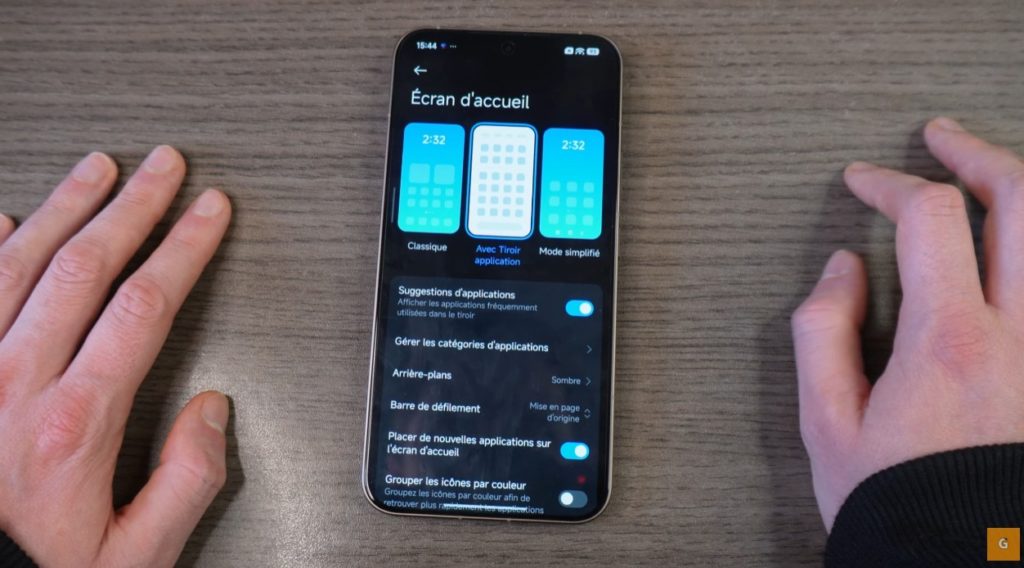
Organizing your applications changes everything daily. Access the home screen settings. Pinch the screen, then click “More”.
You have a choice between Classic mode and the App Drawer. Classic mode spreads everything over the home pages. I find this quickly becomes messy. I strongly advise using the “App Drawer” mode. It arranges everything vertically.
In this mode, you can manage categories. Open your drawer. You will see tabs at the top like “Communication” or “Games”. You can modify or delete them. Create a “Travel” category, for instance. Add your apps like Airbnb or Maps to it. This saves you precious time finding your favorite tools.
Access Your Apps in a Flash
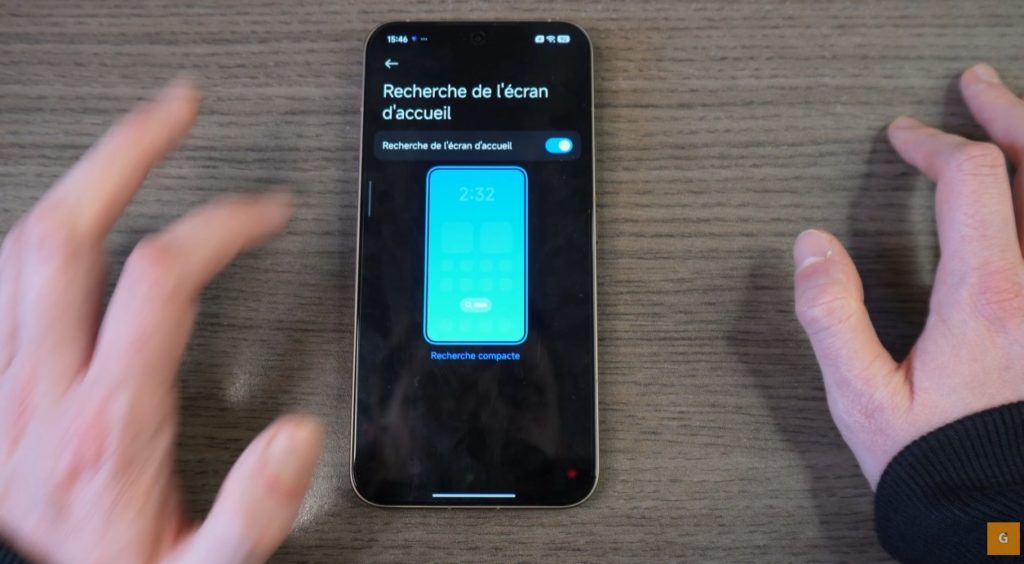
Sometimes, we have too many installed applications. The drawer becomes huge. A very simple solution exists. Activate the search bar at the bottom of the screen.
Return to the home screen settings. Look for the “Home Screen Search” option. Activate it. A small bar now appears just above your dock.
Click on it to launch a search. Type “Facebook” or “Instagram”. The application appears instantly. The system also searches within your settings. It is a quick but formidable trick. It prevents you from scrolling indefinitely through your menus. This is particularly useful if you have many folders on your Xiaomi.
Enhance Your Screen Transitions
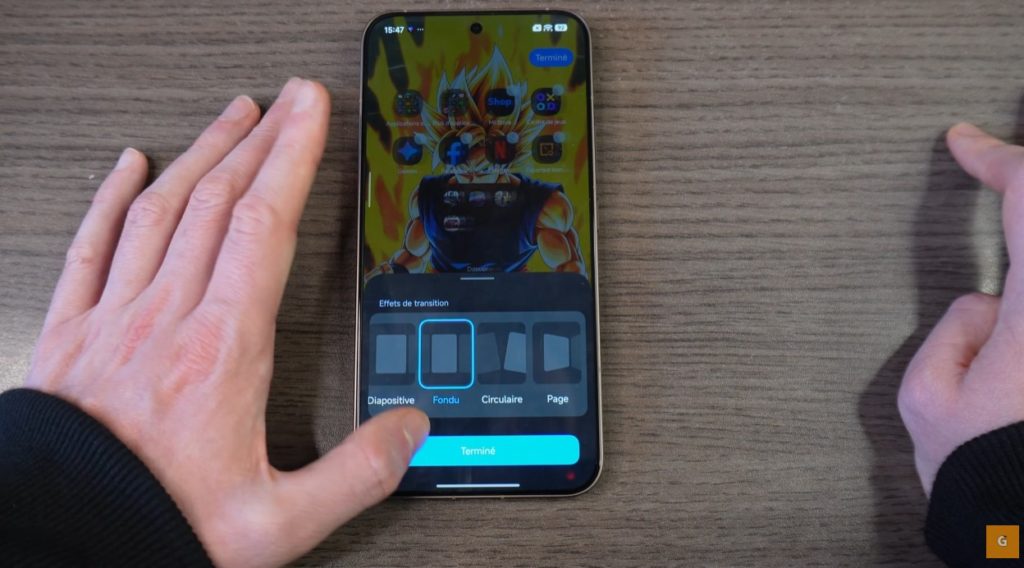
The feeling of fluidity also comes from animations. You can modify how pages scroll. Pinch the home screen again. Go to settings, then “Transition Effects”.
You have several choices like “Cube”, “Page”, or “Cascade”. The “Fade” effect is often very elegant. Test them to see which one you like most. A small demo shows you the result live.
Another interesting option exists for the wallpaper. You can apply a blur to the home screen. This creates a visual separation from the lock screen. When you unlock, the image becomes sharp or blurry depending on your setting. This adds a very premium finishing touch to your HyperOS 3.0 experience.
Create Dynamic Wallpapers with AI
Artificial intelligence is coming to customization. You can now animate your static wallpapers. Go to “Customization” then “AI Live Wallpaper”.
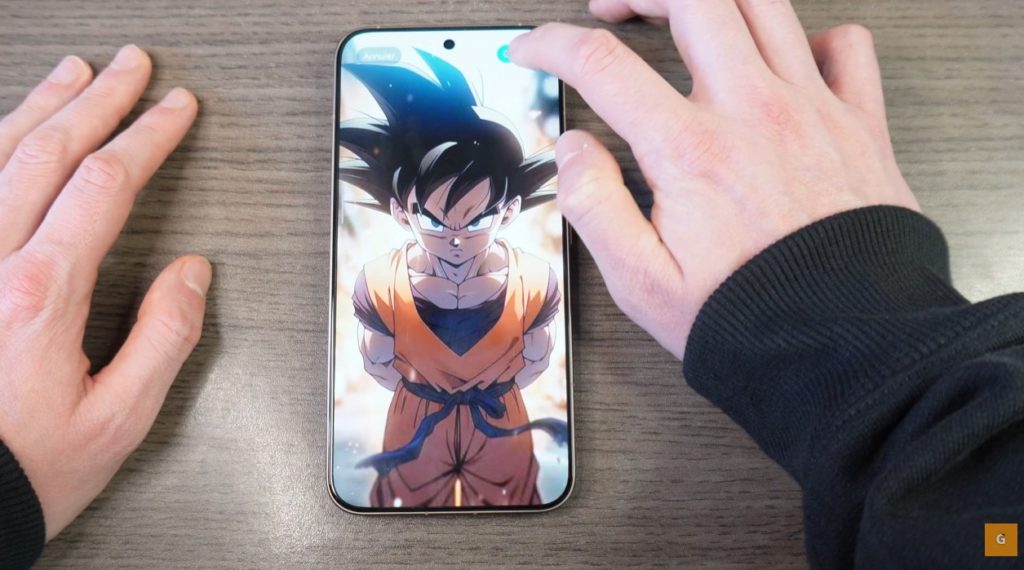
Click the “plus” to add an image. Choose a photo, for example, a manga character. The system will attempt to generate an animation. This does not work with every image. Sometimes, you must insist a little.
Once the animation is created, the result is impressive. You can apply it to the lock screen. Activate the “Depth” option. The time will pass slightly behind the character. This gives a striking 3D effect. You can also harmonize the home screen with the same animated image. It is a flagship feature of new Xiaomi models.
Lock Your Smartphone Effortlessly
We often look for the power button to turn off the screen. However, a much faster method exists. It is the double tap.
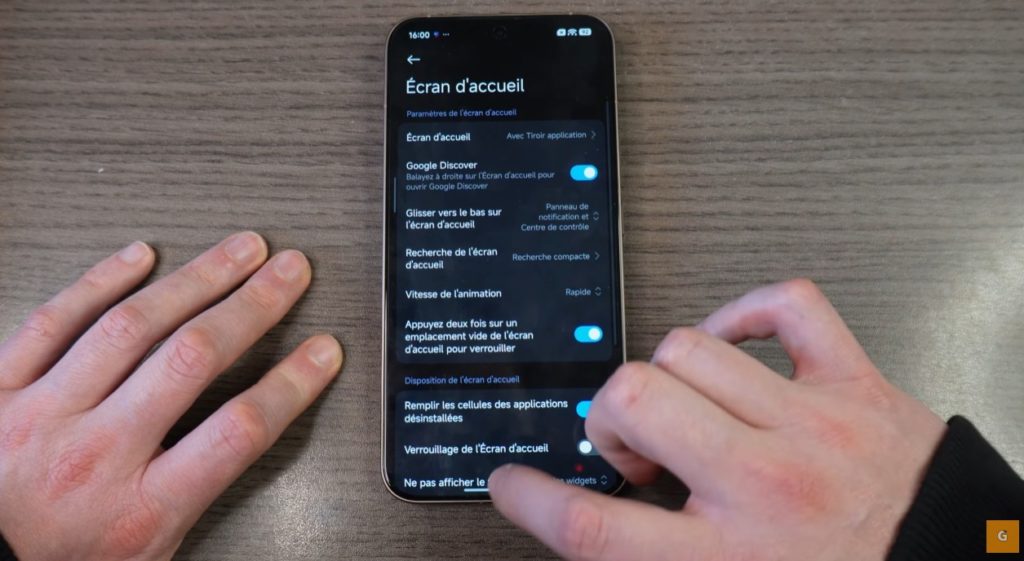
Go to the home screen settings. Look for the option “Double tap to lock”. Activate this feature. Now, test it.
Find an empty space on your screen. Tap twice quickly on it. The screen turns off immediately. This is extremely practical if your phone is lying on a table. You no longer need to pick it up to lock it. It is a small habit that changes daily life.
Take Full Control of Your Notifications
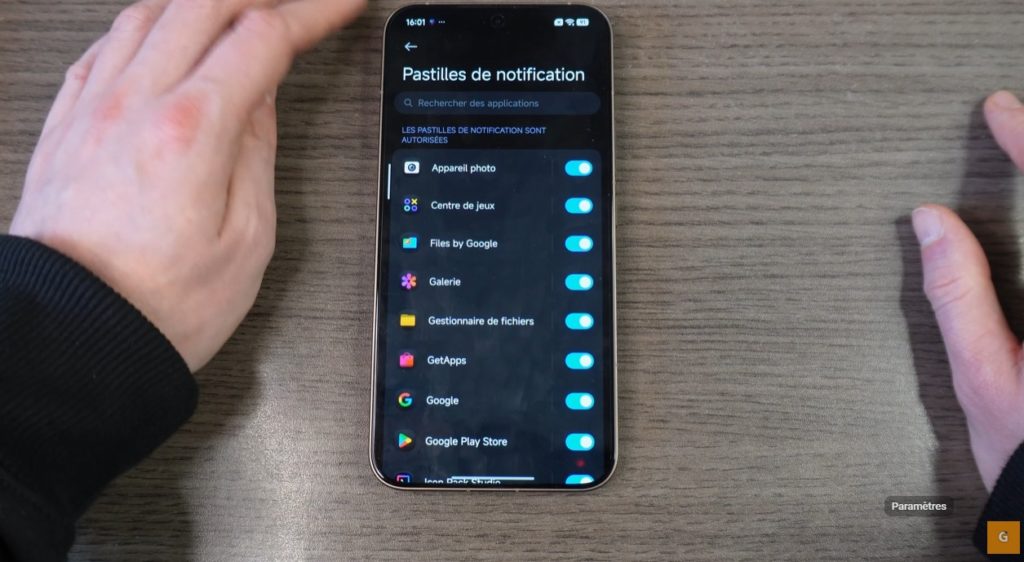
Notifications can quickly become invasive. You must know how to tame them to keep a clean interface. Open settings and type “Notification”. Go to “Notification and Status Bar”.
You can choose which applications are allowed to send you alerts. Disable those from useless games. Then, look at the control center style. You can choose the “Classic” style or the “Android” style.
Customize the status bar icons too. You can hide the Bluetooth or NFC icon if you want to declutter. I advise you to display the connection speed. It is very useful for checking your network.
Finally, manage the battery display. You can put the percentage inside the icon or next to it. For the smart home, you can integrate Google Home directly into the panel. Everything is modular according to your needs on HyperOS 3.0.
Boost Productivity with the Sidebar
Multitasking is a strength of Android. Xiaomi offers a brilliant sidebar for this. It allows you to open floating windows.
To activate it, search for “Floating Windows” in settings. Then find “Sidebar”. Activate the switch. A small translucent bar appears on the edge of the screen.
Swipe it towards the center. You access a list of applications. Click on the browser, for example. It opens in a small window over your screen. You can move and resize it.
You can also launch a second application at the same time. It is ideal for listening to music while browsing the web. You can add your favorite apps to this bar. Click on the “plus” and select your tools. It is a huge productivity gain.